How to use voice billing in a kirana store
Voice billing turns the items you say into a draft bill. With Samaan Bol, you speak on your phone, review the cart, choose cash, UPI or udhaar, then complete and share the bill. Stock updates with the completed sale. Voice processing needs an internet connection.
Free to download. Voice is a Premium feature, with a 7-day in-app trial for new shops. See the free plan and Premium pricing.
हिन्दी में: बोलकर बिल कैसे बनाएँ
- दुकान में सामान, कीमत, यूनिट और शुरुआती स्टॉक जोड़ें। वॉइस भाषा हिन्दी या Hinglish चुनें। वॉइस के लिए इंटरनेट और Premium या चालू ट्रायल चाहिए।
- माइक्रोफ़ोन की अनुमति देकर बिक्री बोलें, जैसे “चावल 5 किलो बेचा”। यह एक उदाहरण है; पहचान की गारंटी नहीं।
- पहचाना गया सामान, मात्रा, यूनिट और कीमत जाँचें। गलत हो तो सुधारें या सामान खुद खोजें।
- कैश, UPI या उधार चुनें। UPI QR दिखाने से भुगतान की पुष्टि नहीं होती; रकम मिलने की जाँच खुद करें। उधार में सही ग्राहक चुनें।
- बिक्री एक बार पूरी करें, फिर बिल और स्टॉक देखें। धीमे जवाब पर दोबारा कमांड देने से पहले पिछली बिक्री की स्थिति जाँचें।
नीचे की तस्वीरें मैनुअल चेकआउट के डेमो की हैं; वे आवाज़ की पहचान का प्रमाण नहीं हैं।
Before the first customer
Create your shop in the app and add the products you sell. Check names, selling prices and units. “Rice” sold by the kilogram is different from a fixed-price rice packet. Add opening stock so later stock changes have a useful starting point.
Choose your voice language and allow microphone access when you want to speak. Try a familiar item before using it during a busy sale. Review the recognized product and quantity; speech recognition can make mistakes.
Make a sale in five steps
- Speak the item and quantity. For example, “चावल 5 किलो बेचा” means rice, five kilograms, sold. Use a name that matches a product in your shop.
- Review the bill. Check the product, unit, quantity and price. Correct anything the app heard incorrectly. The voice command prepares the sale; it does not collect money.
- Choose cash, UPI or udhaar. For cash, check the amount received. For UPI, show the QR and confirm receipt yourself. For udhaar, select the correct customer so the sale is attached to their name.
- Complete the sale once. Check the completed bill before repeating a command, especially after a slow response. This helps avoid accidentally recording the same purchase twice.
- Share and review. Share the bill on WhatsApp if the customer wants it. Check today’s sales and stock after completion. The stock change belongs to the sale; you do not need to record it again as a separate stock removal.
This is an example workflow, not a claim that every spoken sentence will be recognized correctly. Shop noise, product names and pronunciation can affect the result.
A real checkout, from cart to stock update
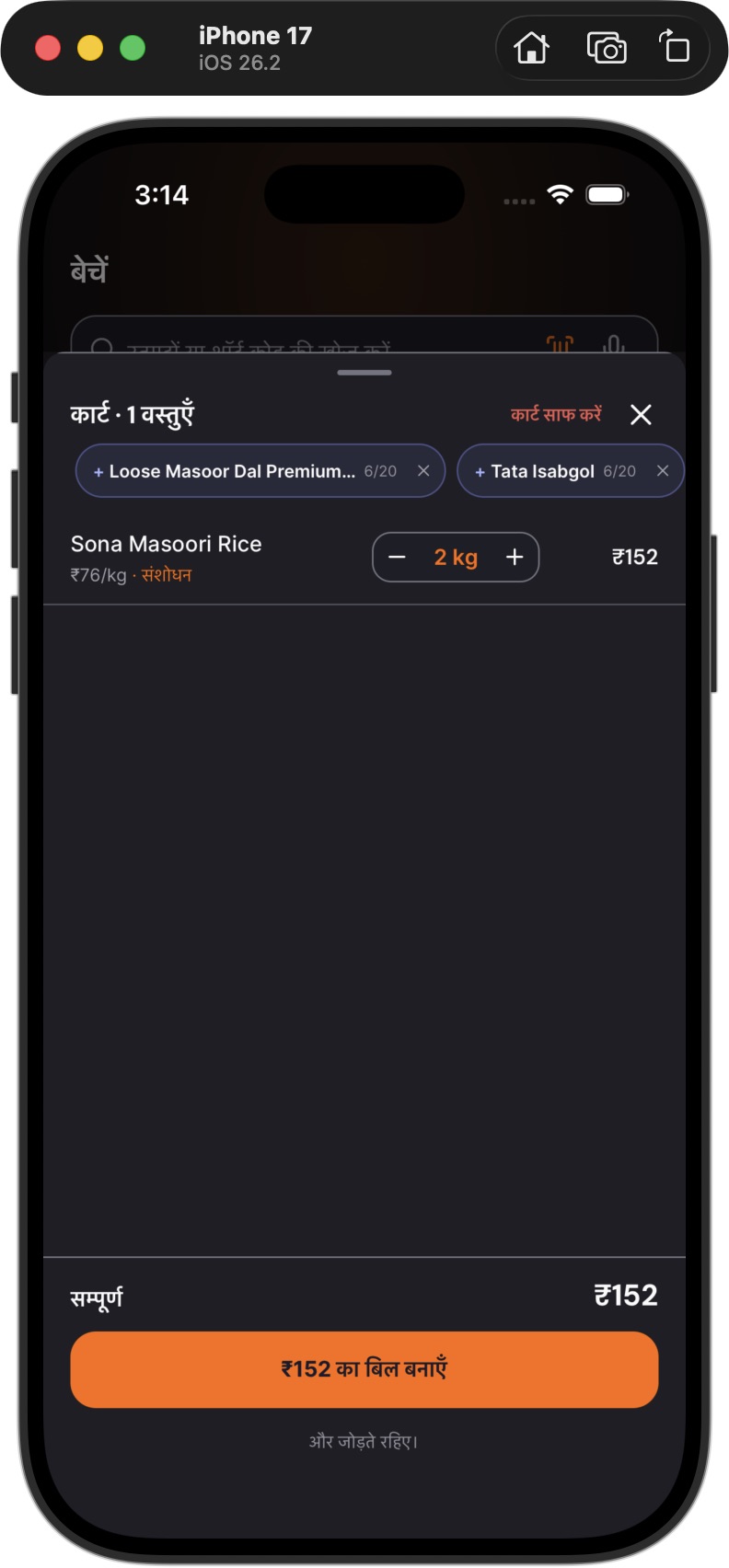
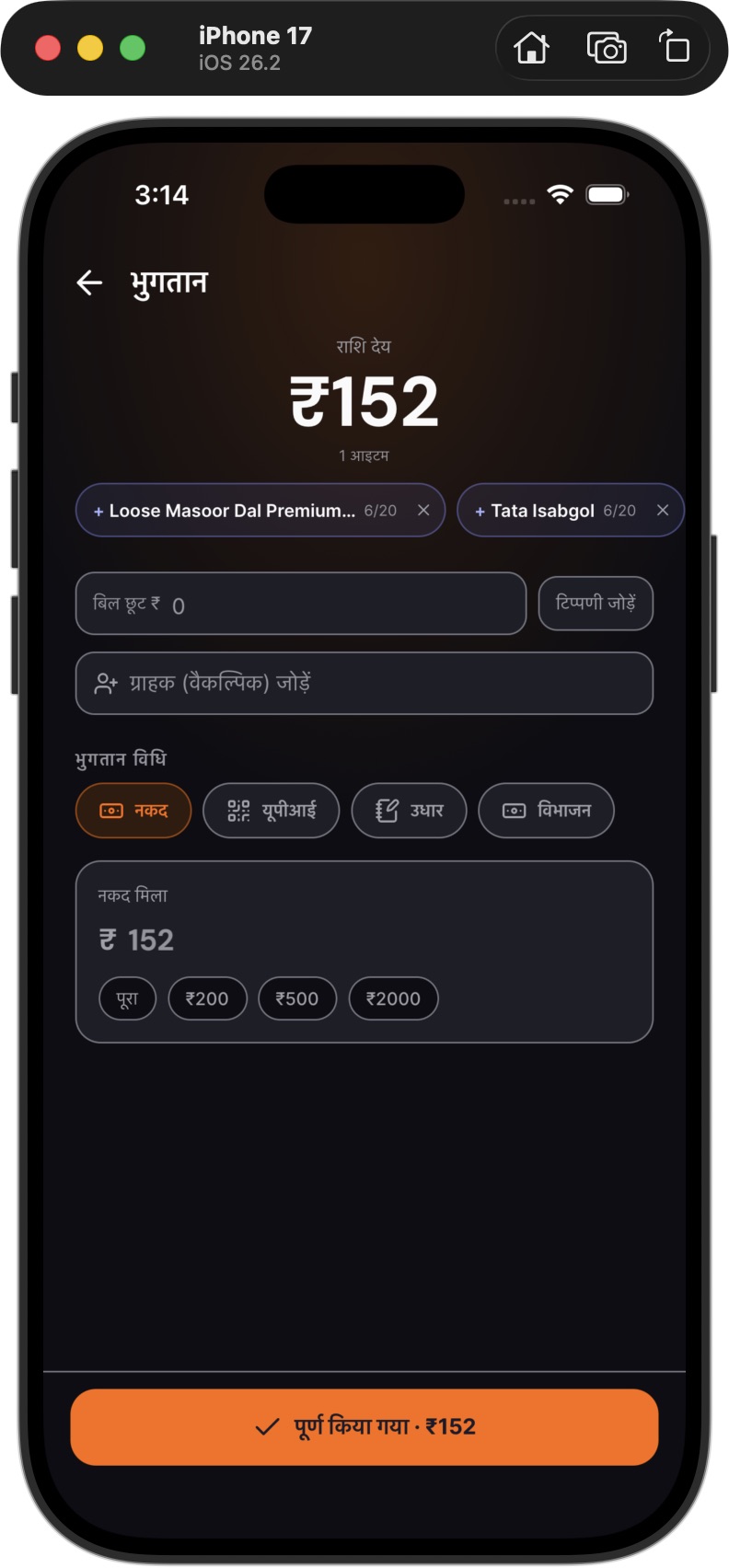
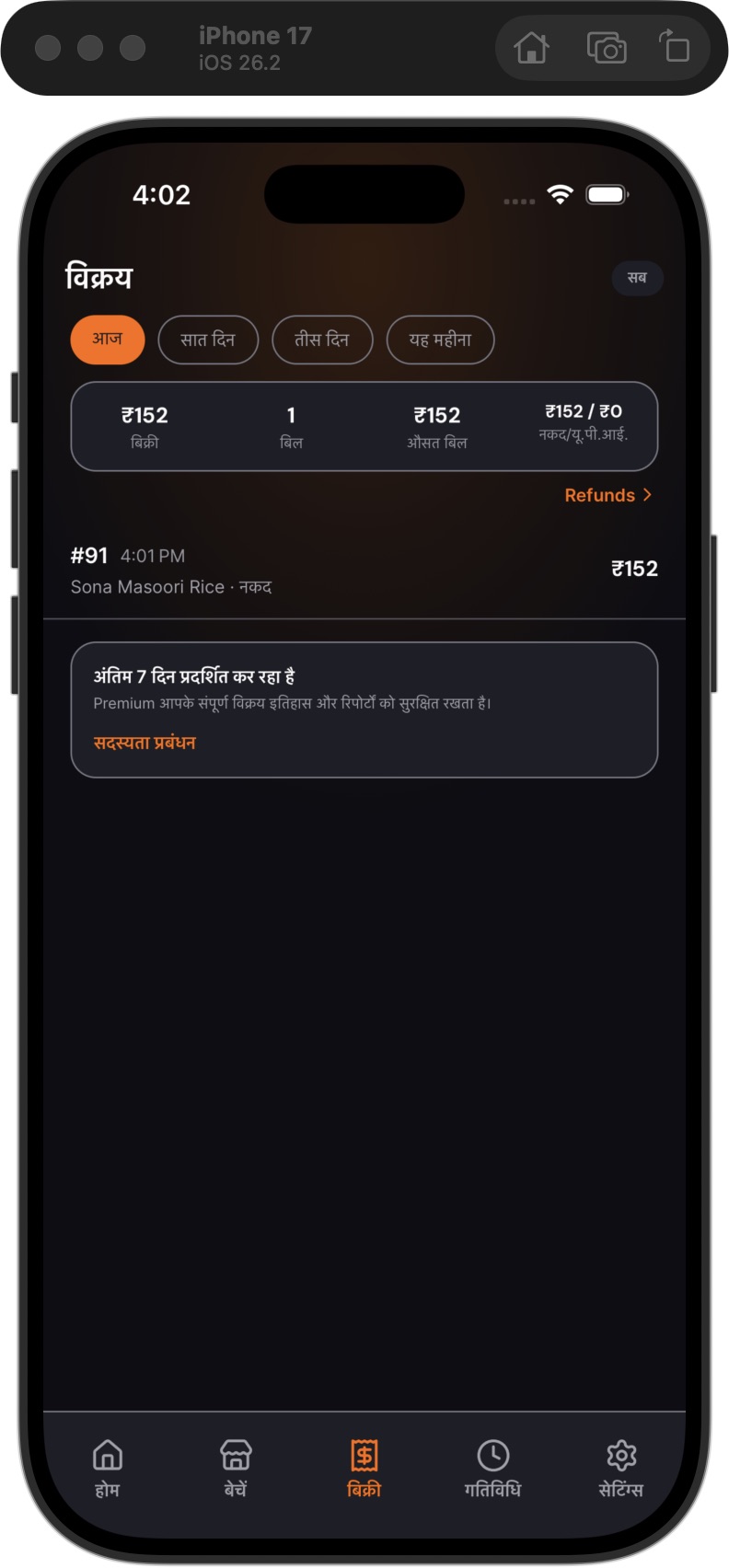
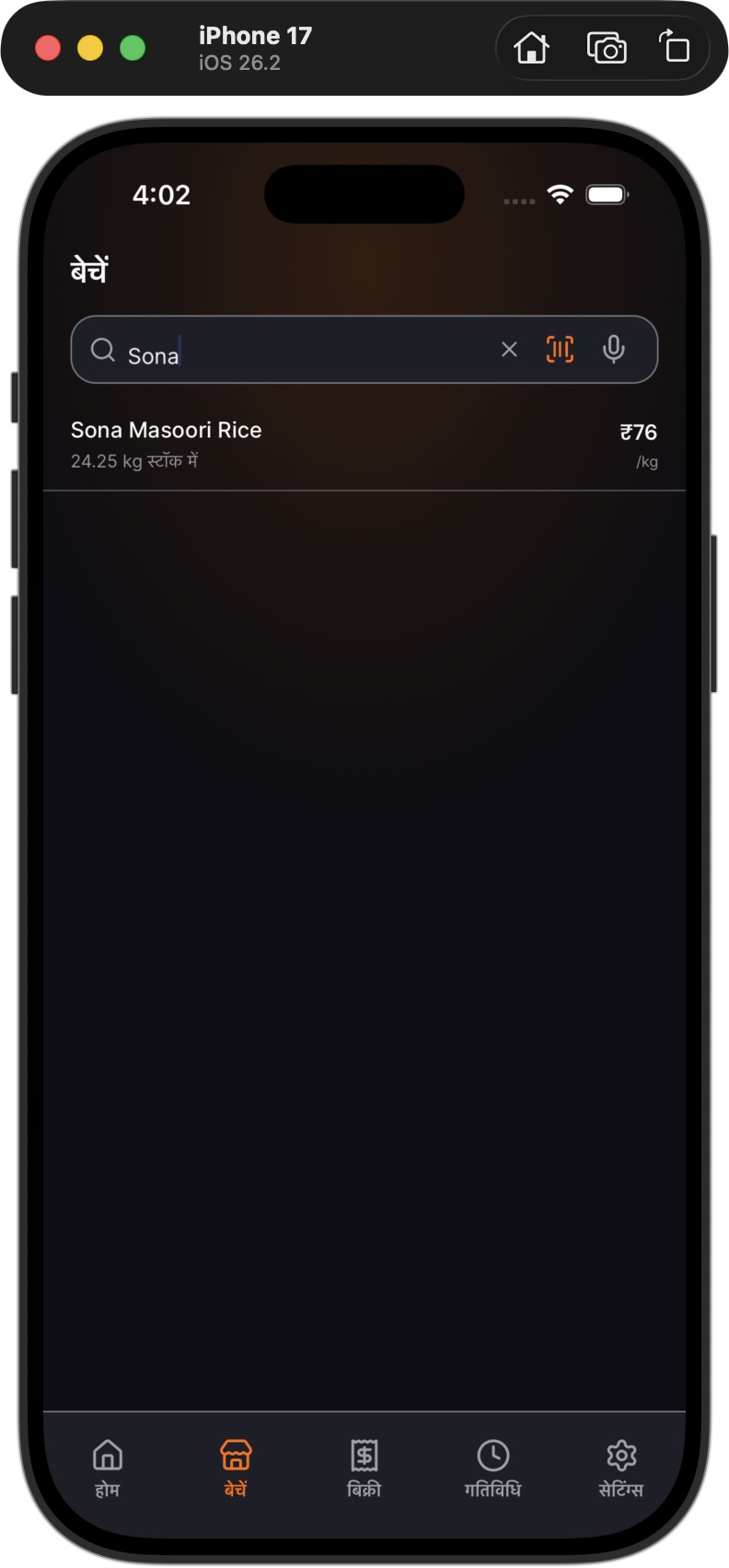
These Hindi screenshots show Samaan Bol v1.0.10 on an iPhone simulator, captured on 1 October 2026 using demo-shop data. We selected the product manually for this example; the screenshots demonstrate checkout and stock updates, not speech recognition.
Two kilograms of Sona Masoori Rice at ₹76/kg made a ₹152 cash bill. After completing it once, bill #91 appeared in sales and the available stock fell from 26.25 kg to 24.25 kg.
1. Review the cart
2. Choose the payment record
3. Verify the saved sale
4. Check remaining stock
Choose the right payment record
| Method | What to check |
|---|---|
| Cash | The customer has paid the cash amount. Keep the paid sale separate from money still owed. |
| UPI | The QR shows the bill amount. Check payment receipt yourself; displaying a QR does not confirm payment. |
| Udhaar | The customer name is correct and the amount is owed. The outstanding list and reminders are Premium features. |
When voice is not the right input
If the shop is noisy or a name is repeatedly misheard, use manual product selection or barcode scanning and check the quantity. If there is no internet connection, do not rely on voice processing. Avoid repeating a sale until you know whether the previous attempt completed.
On a laptop, use search or scanning in the browser. For voice billing, use the phone app and review the recognized items before checkout. See the phone and laptop workflow.
Questions at the counter
What should I check before completing a voice bill?
Check the matched product, quantity, unit, price and customer. A spoken command can be misheard, especially in a noisy shop. Correct the cart before you complete the sale.
What if an item is not recognized?
Check whether the product exists in your shop catalogue. Search or select it manually, then check its quantity and price. Do not accept a different product simply because its name sounds similar.
Can a spoken command confirm UPI payment?
No. Showing a UPI QR and receiving payment are separate steps. Confirm the payment yourself before marking the sale as paid.
Can the owner use a laptop while a helper uses a phone?
Yes. Use the same shop with the appropriate team membership. Use search or barcode scanning in the browser and the phone app for voice billing. Phone and browser sales belong to the same shop; review the bill before checkout.
Try it with your own products
Start with a few familiar products and verify the quantities, prices and stock changes before using voice at a busy counter.
Need help with setup? Contact the Samaan Bol team.